Add users to your organization
Invite team members to collaborate within your organisation. You can do this during setup or manage users at any time afterwards.
Invite users during setup
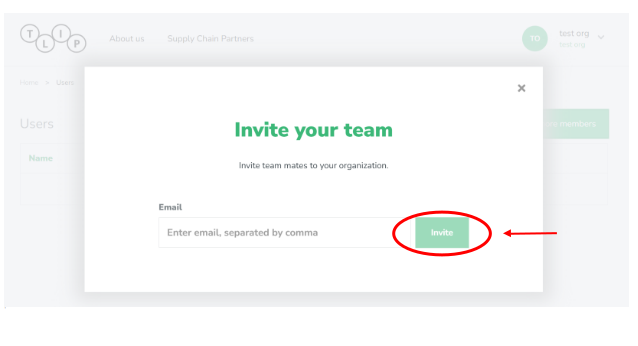
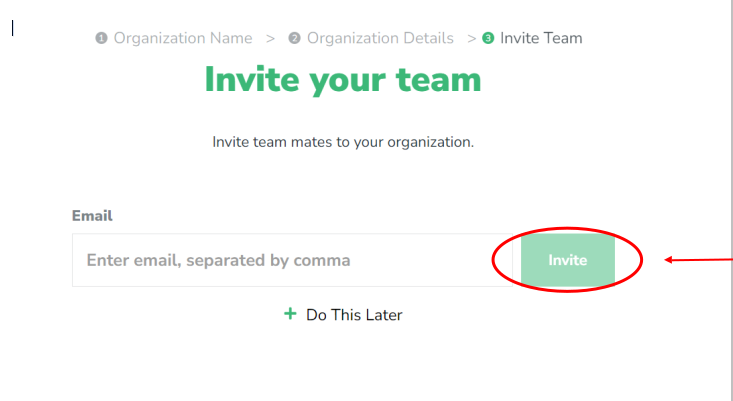
Enter the email address(es) of your team member(s) (separated by commas if several) and click Invite.
- Note that you need to press Enter after the last email address in order to enable the Invite button.
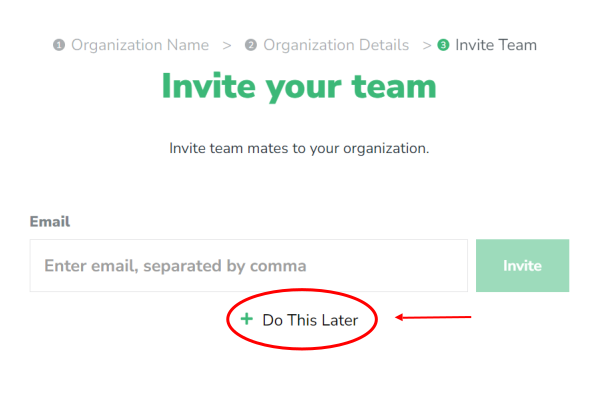
Click Do This Later if you prefer to return to this step later.
Manage users
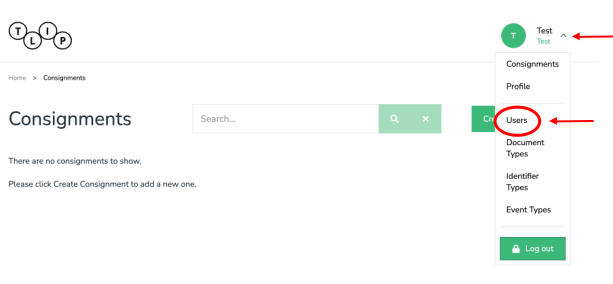
To manage the users of your organization, click on the arrow next to your organization name in the upper right corner and select Users in the dropdown menu.
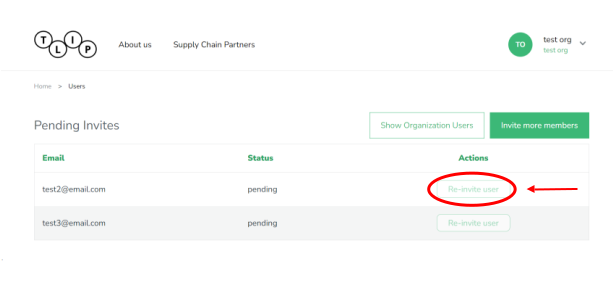
In the User section, you can see a list of pending invitations and resend them using the Re-invite user button.
Invite more members
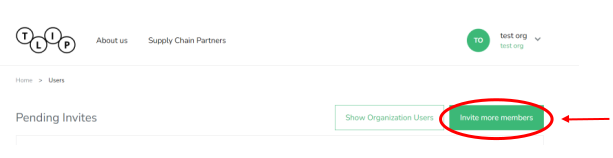
Click Invite more members.
Enter the email address(es) of your team member(s) (separated by commas if several) and click Invite.
- Note that you need to press Enter after the last email address in order to enable the Invite button.